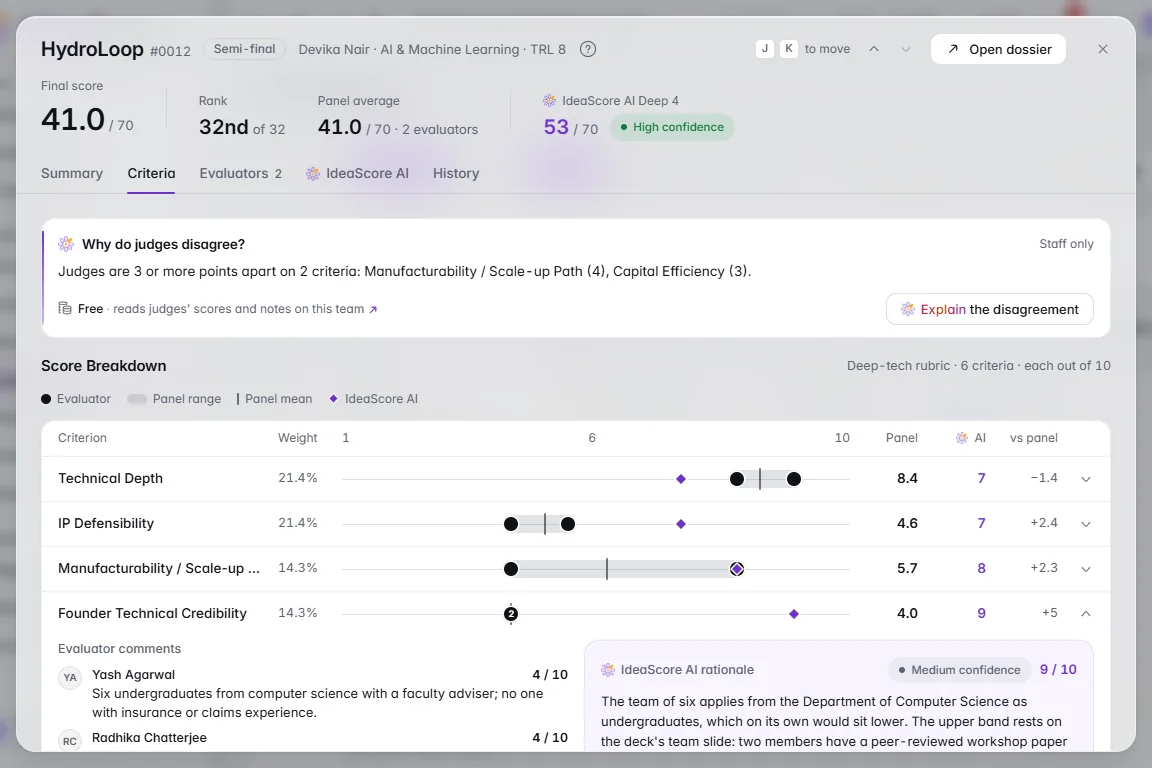
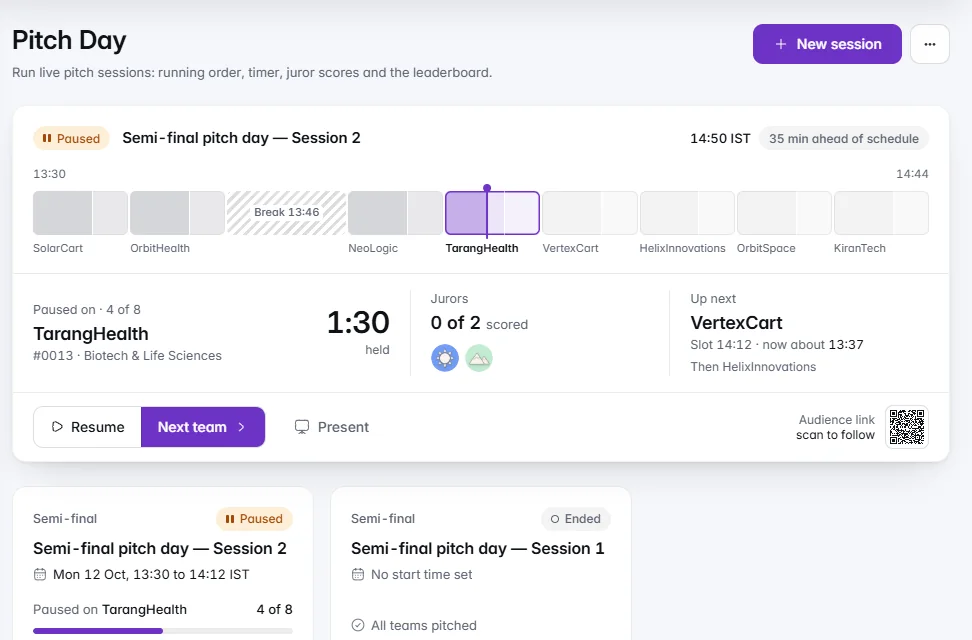
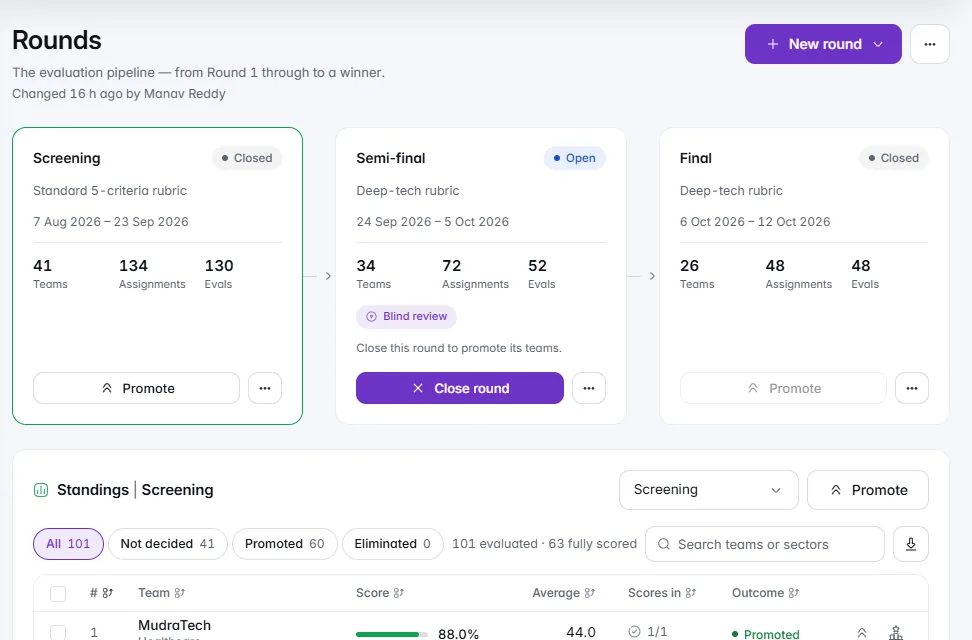
A round is one stage of review, such as Screening, Semi-final or Final, with its own rubric, assignments and leaderboard. This guide runs one from opening to promotion, using 181 applications screened down to 40 as the example.
Related: Evaluation, Review and running a multi-round seed-fund call.
Before You Start
- The rubric for this round, with low and high descriptors written.
- Evaluators invited and conflicts declared.
- Evaluators per team and the scoring deadline, told to evaluators in advance.
- The promotion rule, written down before any score exists: top 40, or everyone above a score.
- A clean submissions list: eligibility checked, duplicates resolved.
More than one round needs multi-round selection on your plan (Growth and up).
Step 1: Set Up the Round
On Rounds, choose New round. The round editor reads back the round in plain sentences; click any underlined part to change it.
- Basics and Dates: the name and when it runs.
- Judging: the rubric it is scored against.
- Evaluators: what they see, including Blind review.
- Who moves on: the rule, such as the top 40. You can narrow it with a condition, such as readiness level 6 or more.
Nothing changes until you choose Save changes.
Step 2: Assign Evaluators
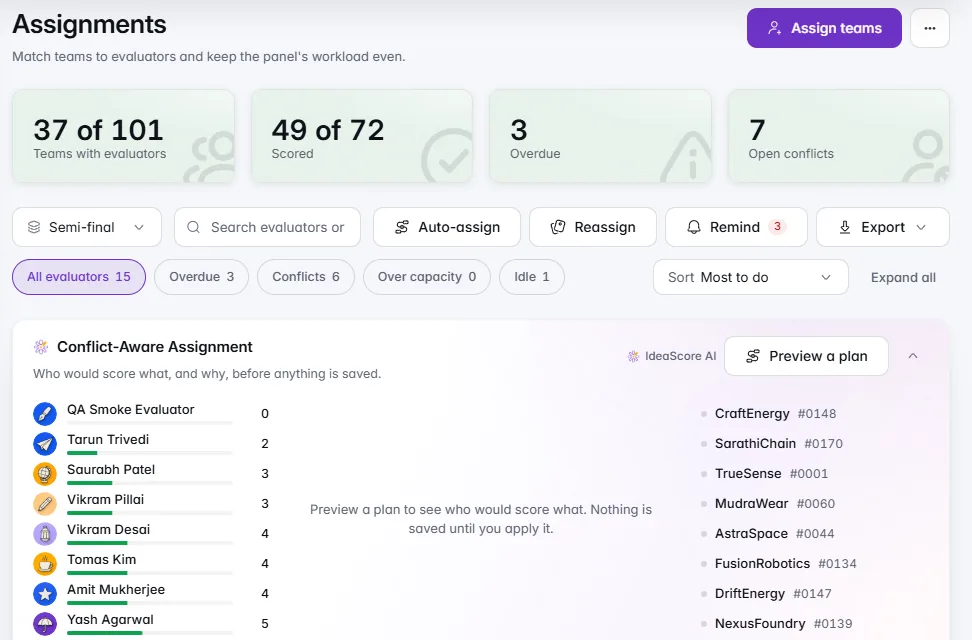
Two evaluators per team suits screening; three is the usual standard for a final. Do the arithmetic now: 181 teams at two each is 362 reads, about 26 each across 14 evaluators. If that is too many, screen harder or add evaluators now, not in week three.
On Assignments, use the Conflict-Aware Assignment plan or Auto-assign with Avoid conflicts of interest on. The evaluator guide covers this step in full.
Step 3: Open the Round and Watch Progress
Choose Open round on its card. Then watch progress by evaluator, not in aggregate: 80 per cent done usually means most have finished and two have not started.
- Remind overdue emails only evaluators behind on their work, and never twice in 24 hours.
- The Review Progress Forecast says when scoring will finish at the current pace.
- If a batch must move, use Reassign at least four days before the deadline.
Step 4: Read the Leaderboard
Each round has its own leaderboard. Three views answer three questions:
Keep Human as the view of record. Turn on Normalise when evaluators scored different sets of teams: each evaluator's scores are rescaled by their own average and spread, so a harsh and a lenient evaluator count the same. The Fair Scoring card shows which teams move and why, before you rely on it.
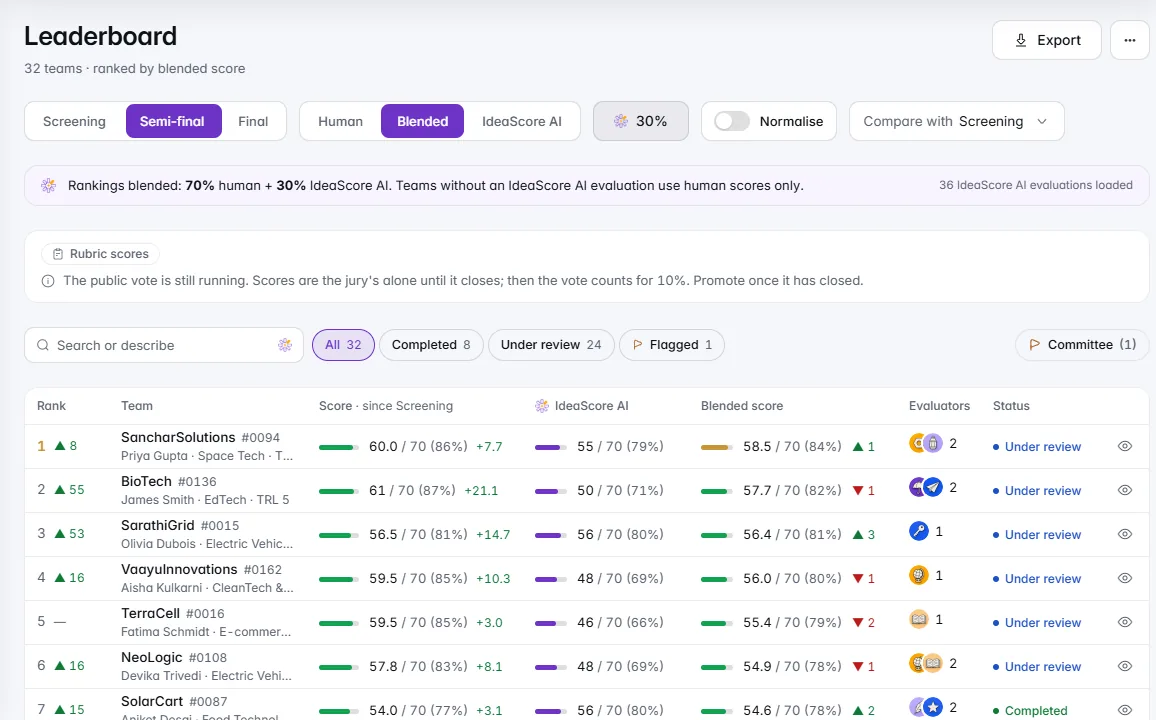
Where the Human and AI views disagree sharply, read the application again before the committee does.
Step 5: Close and Promote
- Choose Close round once scoring is done.
- Choose Promote and apply your written rule: Top N, Cut-off or I choose. Each team shows Goes through or Doesn't go through, and a tie at the line is pointed out.
- Export the ranking from the leaderboard as CSV or Excel for the meeting.
Step 6: Share Feedback with Teams
In the round editor, With teams has Share feedback with teams. Choose the criteria whose averages teams may see. Each team sees only its own averages, and only after you tell it the round's outcome. Evaluators' comments can be shared too, one at a time after you review them; blind rounds keep comments private.
Checklist Before You Close the Round
- Every team has its full number of evaluators, and all scores are in
- Conflicts reassigned, none still open
- Normalised and raw rankings both looked at
- Large Human and AI disagreements read again
- Promotion rule applied exactly as written, ties decided and recorded
- Ranking exported for the committee