

Your Judgement, Without the Paperwork
Open on the next team, read decks with names taken out, score with the descriptors beside you and turn notes into feedback.Open on the next team to score, read decks with names and photos taken out, score each criterion with its descriptors beside you, and turn your notes into feedback a team can use. Your score is always your own view.


A Judging Day, Start to Finish
What your time in IdeaScore looks like, from the first team to the committee meeting.
First thing
Up Next
Reading
The deck, not the people
Scoring
Descriptors beside you
Feedback
Notes into feedback
Committee
Vote from your phone
What IdeaScore Does for a Judge
Open on the work, not a menu
Up Next lists the next teams to score across every programme, overdue first, with the next deadline in your own time zone.Up Next lists the next three teams to score across every programme you judge, overdue first, each one click from the scoring page. At a Glance counts what is left, your drafts and anything overdue, with the next deadline in your own time zone, and each programme shows how far you are.
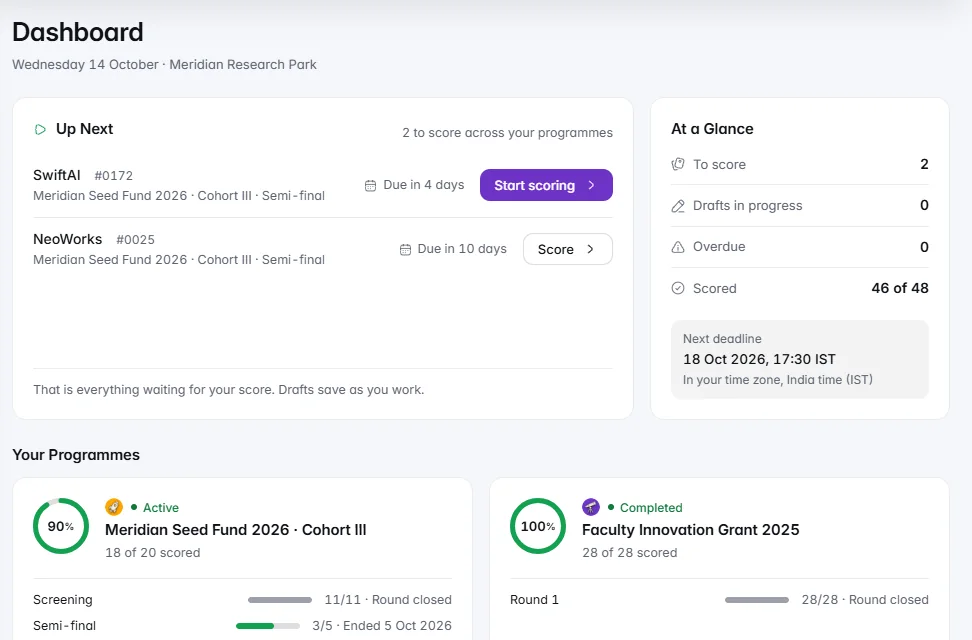
Your score is your own view
You see the application and your scoring form, not IdeaScore AI's notes, unless your organiser chooses otherwise. You never see its scores.By default you see the application and your scoring form, and nothing IdeaScore AI wrote about the team. Your organiser may show its notes once you submit your own score, or from the start; you never see its scores, and blind rounds never show its notes. Team contact details and rankings stay hidden too, unless the programme chooses otherwise.
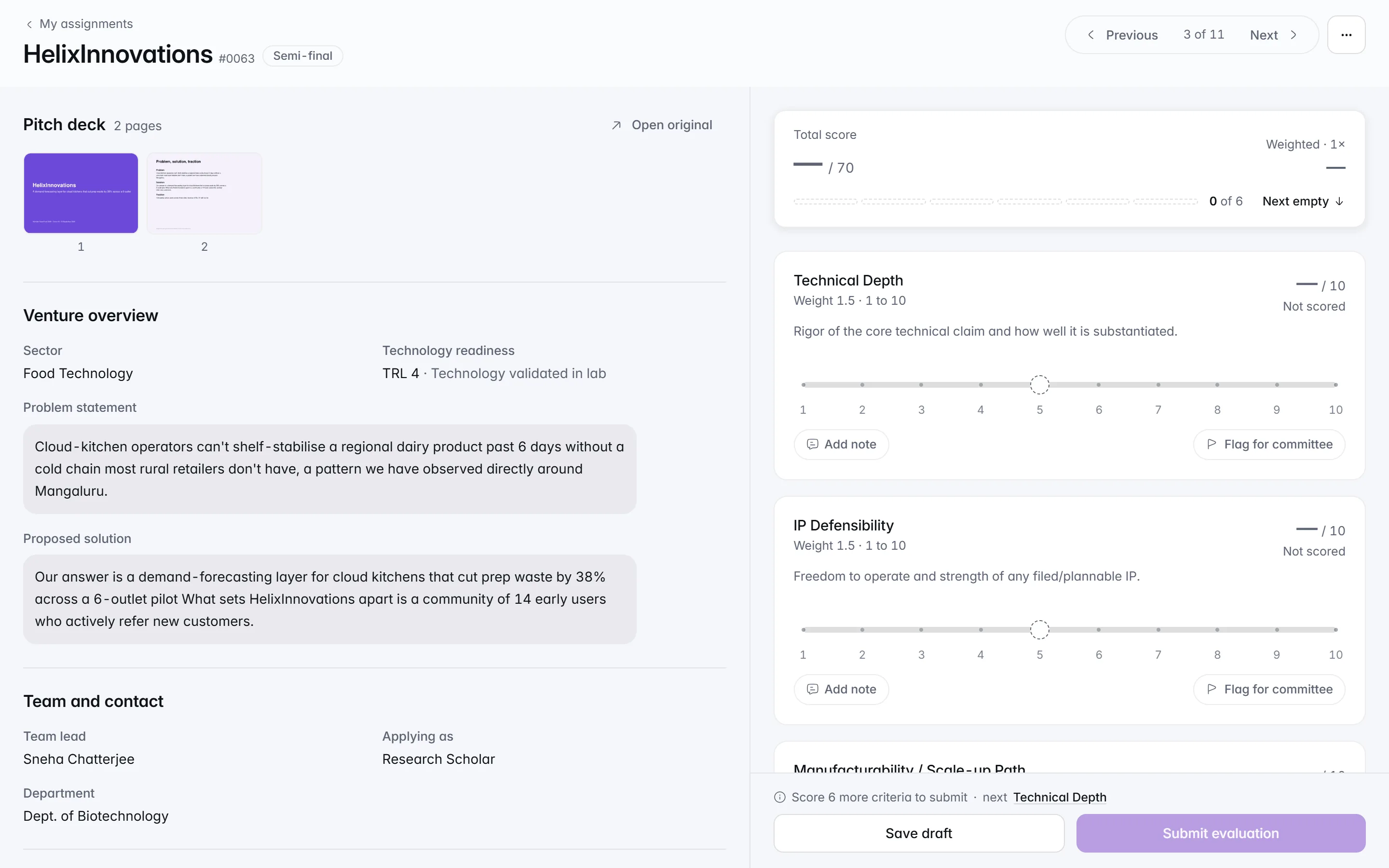
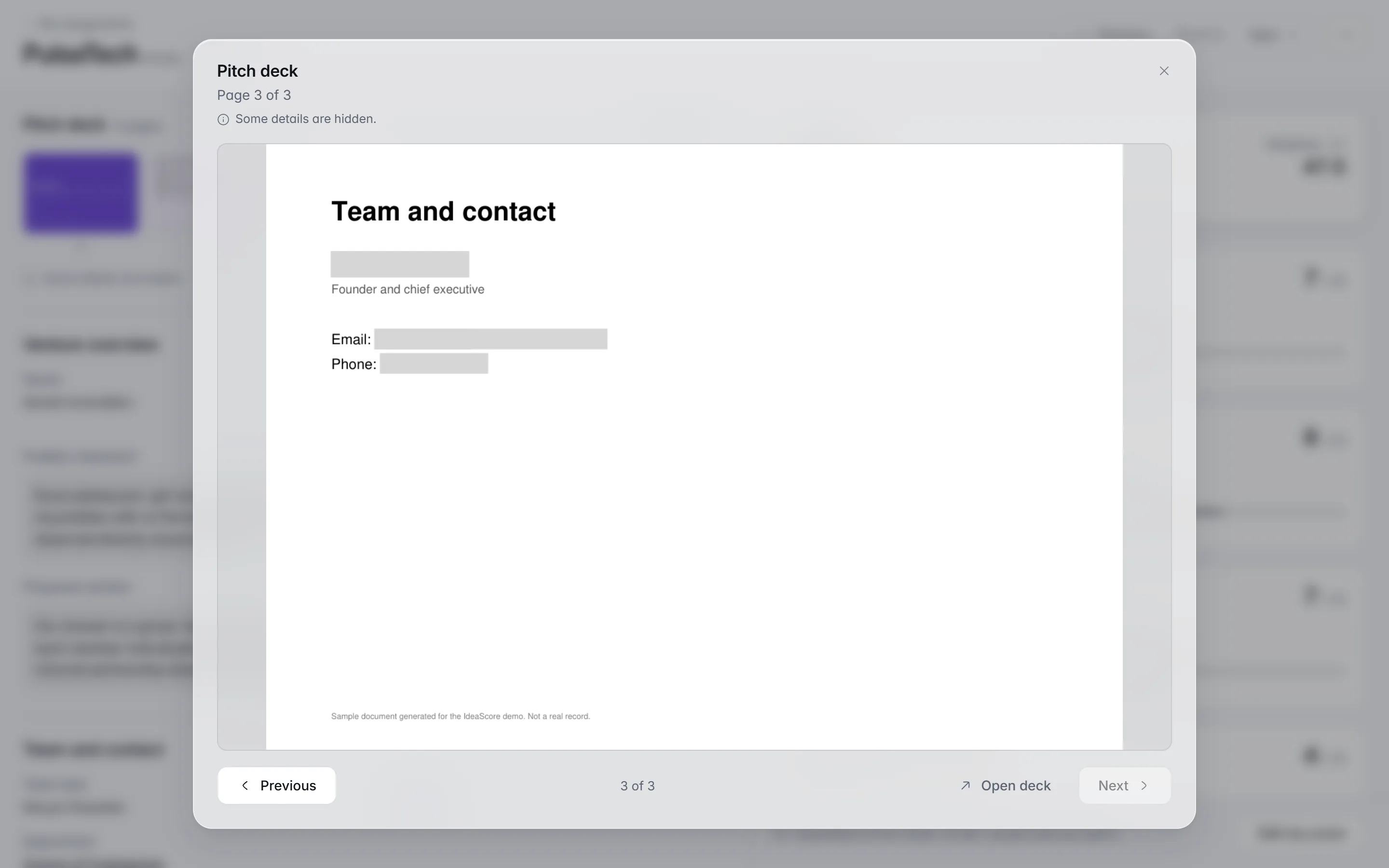
Read the deck, not the people behind it
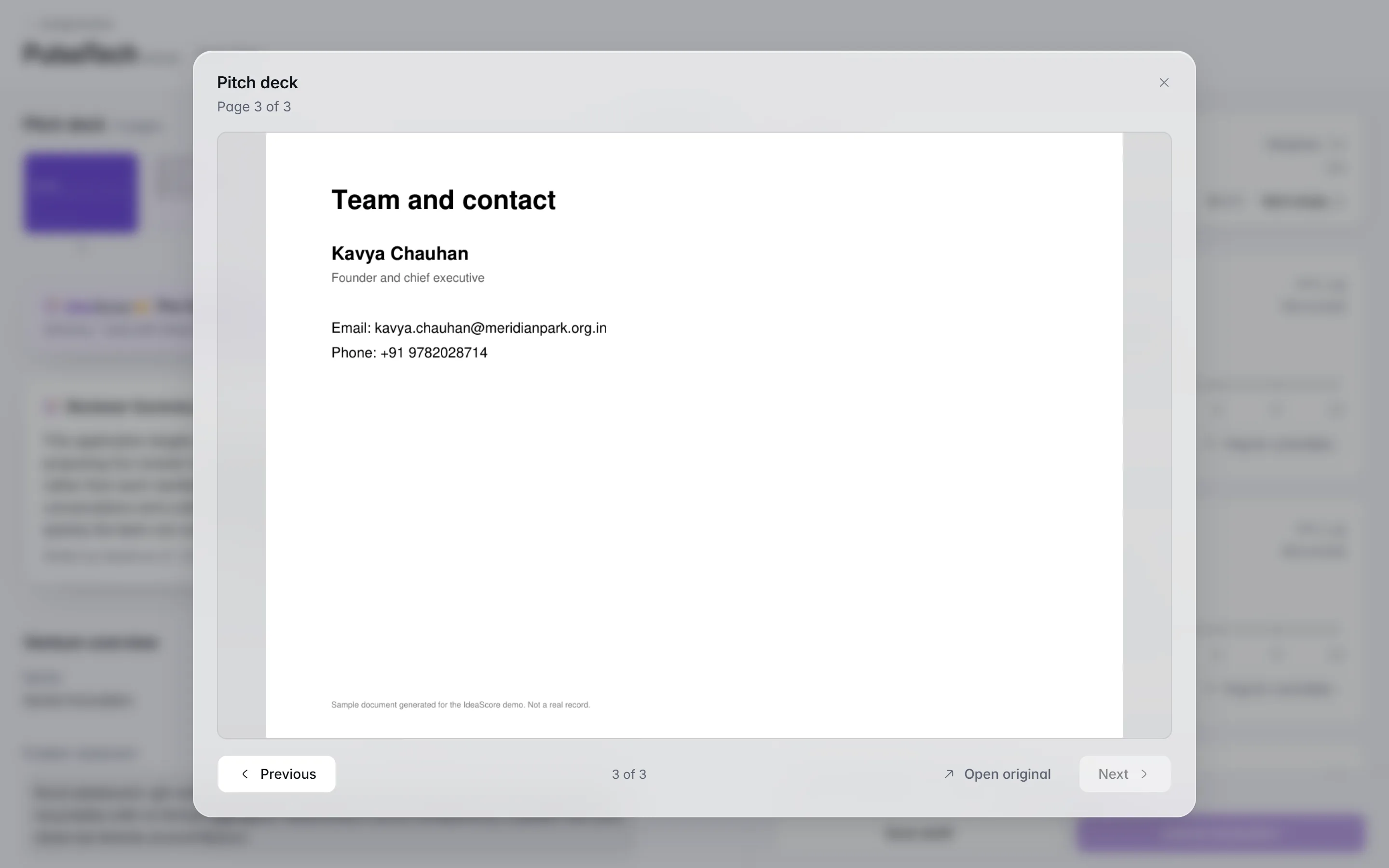
With deck masking on, names, contact details and photos are taken out of the decks you open, so you judge the idea on its own.When the programme switches on deck masking, the decks you open have the names of the people in the programme, their contact details and every photograph taken out of the file itself, not covered over. A plain grey block sits where the text was, with one small note, Some details are hidden, so you judge the idea on its own.

Turn your notes into feedback a team can use
One kind, specific paragraph per criterion from your own notes. Edit, keep or skip each one; your scores never change.After you score, Draft feedback from my notes writes one kind, specific paragraph for each criterion you scored or noted, with a line on what would move the team up a band. Edit any of it, keep or skip each part, and it goes into your overall comments. It reads only your own scores and notes and the rubric, and it never changes a score.

- Your score 9
Your focus on sub-1 MW rural feeders is a gap few have tried to fill, and the storage design answers it directly.
Skip - Your score 8
The two utility conversations show real interest. Turning one into a written pilot commitment would make the case much stronger.
To move up a band: a signed pilot or letter of intent from a utility.
Skip - Your score 7
Skipped Keep
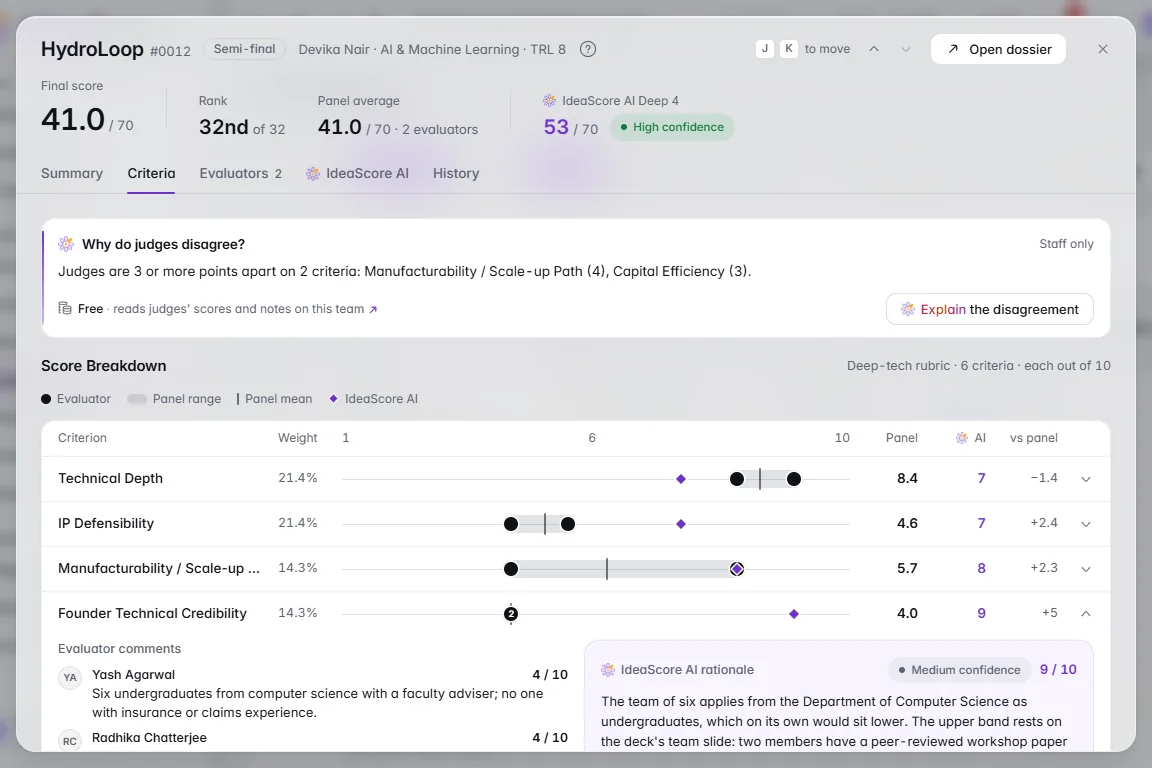
When judges disagree, a neutral reading
When scores are 3 or more points apart, the programme team gets a cited reading of each note and one neutral question. It never says who is right.When judges' submitted scores on a criterion are 3 or more points apart, the programme team can ask Why do judges disagree?. It explains what each note says that led to each score, cites the notes, and offers one neutral question for the panel to discuss. Judges are sent as Judge A and Judge B, it never says who is right, and only the programme team sees it.
Vote in the selection meeting from your phone
One team at a time. Vote Accept, Waitlist or Decline from your phone, add a line for the chair, and dissent is recorded.In a committee session the panel takes one team at a time. Members vote Accept, Waitlist or Decline from a laptop or a phone, with an optional line for the chair saved with the vote. The chair confirms each outcome and moves on, and any vote that differs from the confirmed outcome is recorded as dissent.
Ask how, without leaving the page
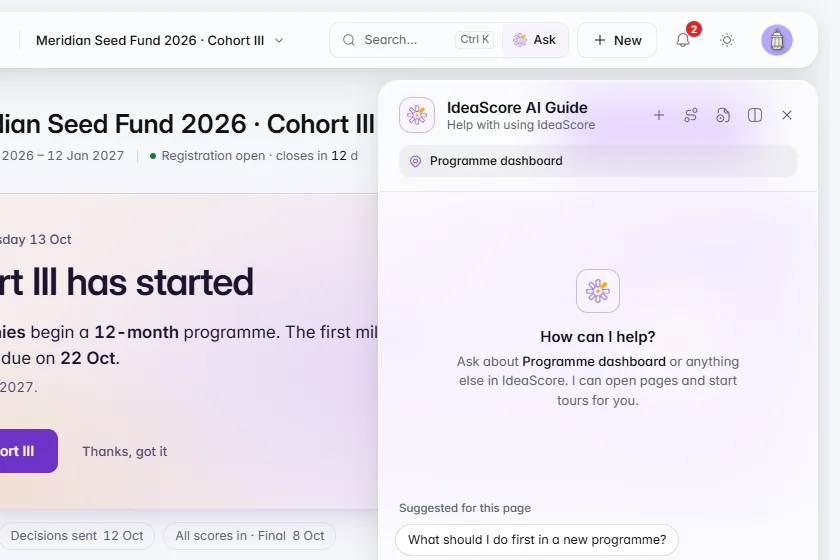
Ask in the top bar answers how-to questions from the Help Centre and opens the right page. It never reads application data.Choose Ask in the top bar, or press Ctrl /, and the IdeaScore AI Guide answers how-to questions from the Help Centre in a few numbered steps, with buttons that open the right page or start a tour. It never reads application data, scores or names, it is free, and when it cannot answer, it hands the conversation to a person.

What IdeaScore AI Does for You Here
It helps you write and find your way. It never scores for you, and you never see its scores.
Turn my notes into feedback
Free · reads only your scores, notes and the rubric
The IdeaScore AI Guide
Free · never sees application data, scores or names
Its notes on a team, if your organiser chooses
Never its scores or full evaluations
Why do judges disagree?
Judges are sent as Judge A and Judge B
What It Takes Off Your Plate
Working out what is due
Rewriting notes for teams
Losing a score to a bad connection
Judging people, not ideas
Guessing what a seven means
Ranking in a spreadsheet
Committee minutes
Meeting links and invites
Looking up how to do something
Working out what is due
Rewriting notes for teams
Losing a score to a bad connection
Judging people, not ideas
Guessing what a seven means
Ranking in a spreadsheet
Committee minutes
Meeting links and invites
Looking up how to do something
Questions Judges Ask
Give Your Panel a Calmer Scoring Day
A 30-minute walkthrough with a product specialist, from the evaluator's first screen to the committee vote.
A Judging Day, Start to Finish
First thingUp Next
ReadingThe deck, not the people
ScoringDescriptors beside you
FeedbackNotes into feedback
CommitteeVote from your phone
What IdeaScore Does for a Judge
Open on the work, not a menu
Up Next lists the next teams to score across every programme, overdue first, with the next deadline in your own time zone.
- Rank your entries or Compare entries when a round asks for it
- J and K move to the next and previous team
Your score is your own view
You see the application and your scoring form, not IdeaScore AI's notes, unless your organiser chooses otherwise. You never see its scores.
- Descriptors say what a low and a high score mean
- On a weak connection, scores are saved on your device first
Read the deck, not the people behind it
With deck masking on, names, contact details and photos are taken out of the decks you open, so you judge the idea on its own.
- Team names and the programme's own name stay
- A deck still being prepared is ready in a few minutes
Turn your notes into feedback a team can use
One kind, specific paragraph per criterion from your own notes. Edit, keep or skip each one; your scores never change.
- Written to the team, never mentioning scores, other judges or IdeaScore AI
- Undo puts your comments back as they were
- Your score 9
Your focus on sub-1 MW rural feeders is a gap few have tried to fill, and the storage design answers it directly.
Skip - Your score 8
The two utility conversations show real interest. Turning one into a written pilot commitment would make the case much stronger.
To move up a band: a signed pilot or letter of intent from a utility.
Skip - Your score 7
Skipped Keep
When judges disagree, a neutral reading
When scores are 3 or more points apart, the programme team gets a cited reading of each note and one neutral question. It never says who is right.
- Only submitted scores count, never drafts
- Contact details in a note are removed first
Vote in the selection meeting from your phone
One team at a time. Vote Accept, Waitlist or Decline from your phone, add a line for the chair, and dissent is recorded.
- Join call and calendar buttons on the Next meeting card
- The programme's time first, with your own time beneath when it differs
Ask how, without leaving the page
Ask in the top bar answers how-to questions from the Help Centre and opens the right page. It never reads application data.
- Answers only from articles your role can read
- Your questions are kept for you for 180 days