On pitch day, teams present to jurors who score as they go, a timer keeps the room on schedule, and the leaderboard fills as scores arrive. This guide sets up a session in about ten minutes.
Related: Pitch day and judging a hackathon fairly.
Before You Start
- Pitch-day scoring on your plan (Growth and up), switched on as a feature for the programme.
- The round the session belongs to, with its rubric and assigned evaluators. They become the jurors.
- The running order, with breaks, and minutes per team.
- The room: a projector for the board, and a place or a meeting link for teams.
Step 1: Create the Session
On Pitch day, choose New session. It creates the session and its audience link; nothing starts until you press Start. Each session card has Open, Present (the projector board, in a new tab) and Copy audience link.
Step 2: Set the Running Order and Timing
Open the session and set:
- The running order: drag to reorder and add breaks.
- The timing for each team, from 2 to 10 minutes.
- The jurors: the evaluators assigned to each team in the round.
- What the audience sees.
Leave room for questions in each slot. A day that runs ten minutes late by lunch rarely recovers.
Step 3: Tell Teams Their Slots
Save the schedule with a start time. In its audience area, switch on Show slots to teams. Add a place, such as "Auditorium B, ground floor", or a meeting link, then choose Save place and link.
Each team sees only its own pitch time on its application page, with Add to calendar. No team sees another's time.
Step 4: Prepare the Compere
Open the session and choose Draft team intros. IdeaScore AI writes two short lines per team in running order, from each team's stored summary: what it builds and for whom, then one concrete thing such as a pilot. Edit any line, then Print run sheet or Copy all.
It reads only each team's summary and sector, never contact details, form answers or scores, and nothing is sent anywhere.
Step 5: Run It Live
Press Start, then Next team, Pause and End as the day goes. Jurors score each team as it presents; their scores are saved as they go and resent if the connection drops.
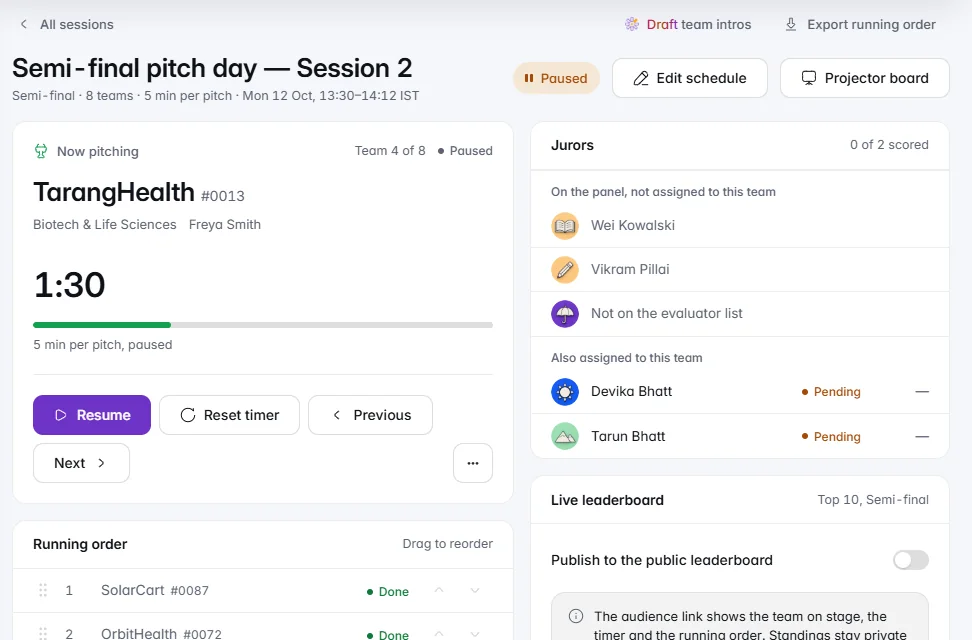
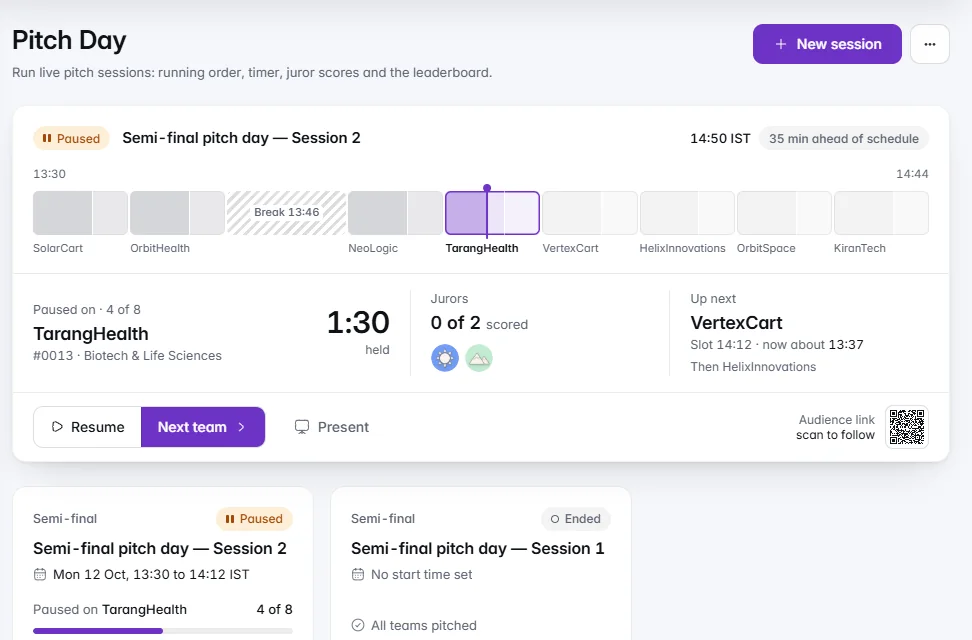
While the session runs, the top of Pitch day shows the run sheet: every slot on one track, a marker that moves with the timer, and how far ahead or behind schedule you are. Under it are the team on stage, the jurors as their scores land and who is next.
Step 6: Decide When the Room Sees Standings
The audience link and the projector board show the team on stage, the timer and the running order. Standings stay private until you publish them; then both show the top 10, updated every few seconds. You can switch standings on or off during the session.
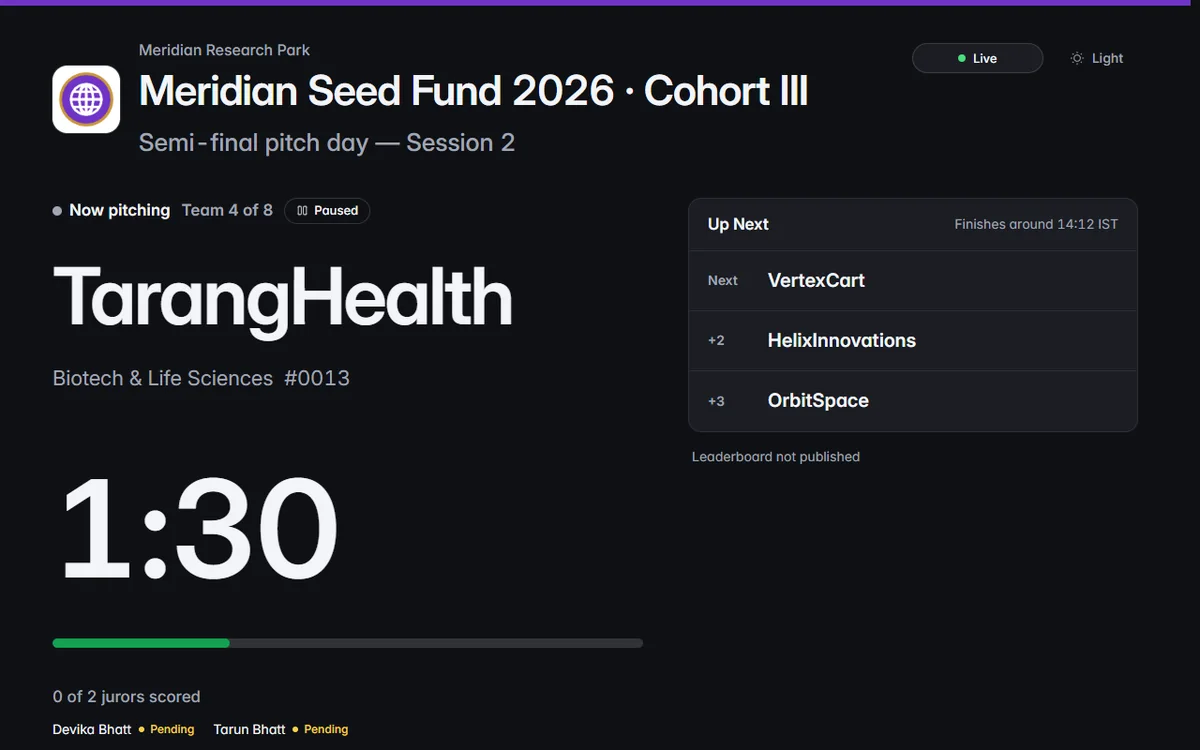
Most programmes keep standings private until the last team has pitched, so no team presents to a room that already knows the order.
Checklist for the Morning
- Session created, running order and breaks set, times realistic
- Every team has its jurors, and every juror can sign in
- Slots shown to teams with the place or link
- Compere's run sheet printed
- Projector board opened with Present and checked on the screen
- Standings private until you choose to show them