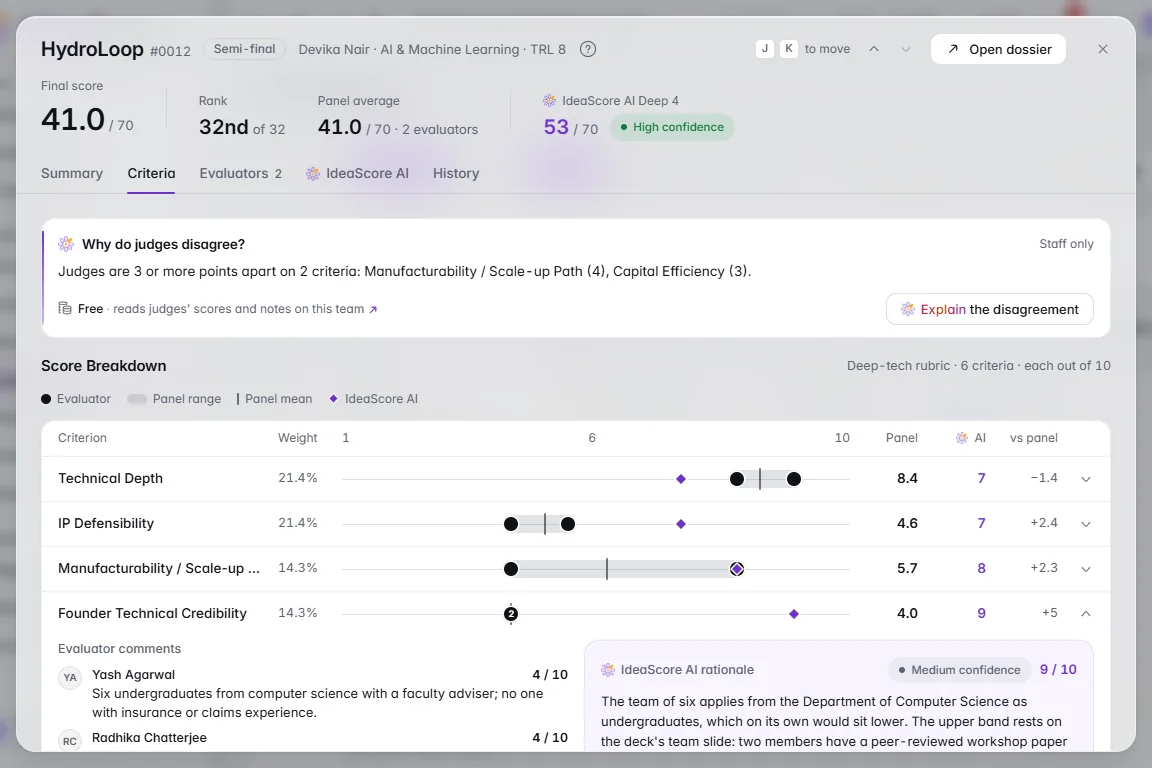
A rubric is the scoring sheet evaluators fill in. Each criterion is scored, multiplied by its weight and added up, so the weights say what the programme is really looking for. This guide builds one in about eight minutes once you know your criteria.
Related: Evaluation, and the longer argument in how to design a rubric committees trust.
Before You Start
- Four to eight criteria, each one a thing an evaluator can judge from the application.
- A rough weight for each: which matter most, which least.
- What a low and a high score look like for each criterion, in a sentence or two.
- The round it is for. Each round uses one rubric, so screening and the final can score different things.
Step 1: Start the Rubric
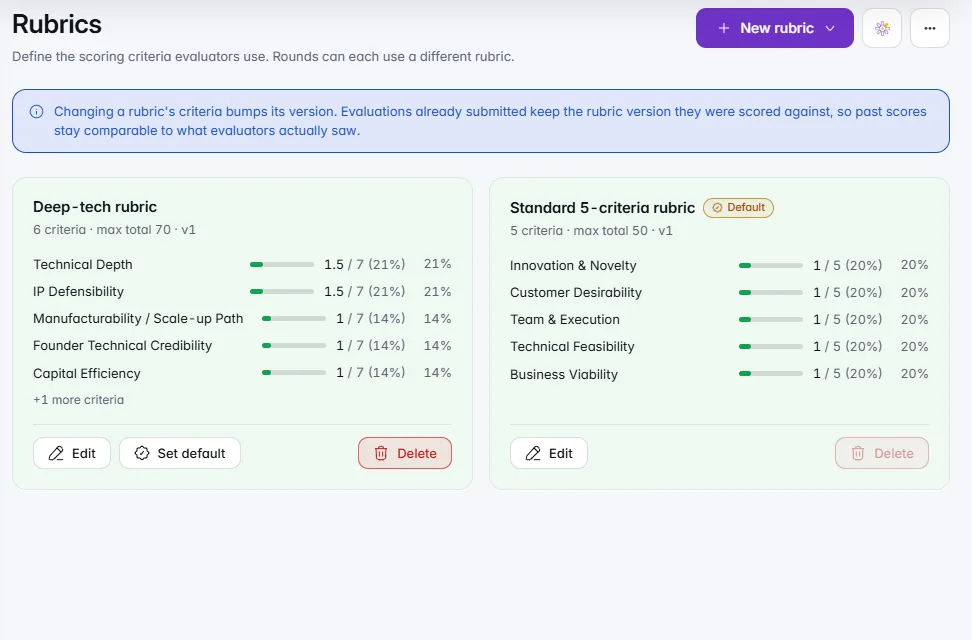
On Rubrics, choose New rubric, then one of:
- Set up with IdeaScore AI: say what evaluators should look for, choose 4 to 8 criteria, and it drafts each with a weight and what the lowest and highest scores mean. Nothing is saved until you save the rubric.
- From a template: previewed first, then added as a new rubric.
- Blank rubric: an empty editor.
Inside the editor, Start from a preset offers a rubric written for your kind of event (a hackathon, a moot court, a grant and so on), with weights that add up to 100. A preset or draft is only a start: reword, reweight and trim it before you save.
Step 2: Name the Criteria
Each criterion is one line: its name, its score range and its weight. Open it with the arrow to add a description for evaluators.
Keep names short and specific. "Market evidence" tells an evaluator what to look for; "Business" does not. Drag criteria into the order evaluators should read them.
Step 3: Set the Weights
Each slider sets a weight, and the bar at the top shows every criterion's share of the total. Drag a divider on the bar to move weight between the two criteria either side of it; the others stay as they are.
If one part of the application should count for more, such as referee letters on a scholarship, raise that criterion's weight rather than adding a second criterion for it.
Step 4: Describe the Lowest and Highest Scores
For every criterion, write what the lowest and the highest score mean. This is the step that keeps a panel consistent: two evaluators reading "No paying customers or pilots yet" at the bottom of the scale will score the same team much closer together.
Describe what is in the application, not a feeling. "A working prototype tested with users" can be checked; "Strong technology" cannot.
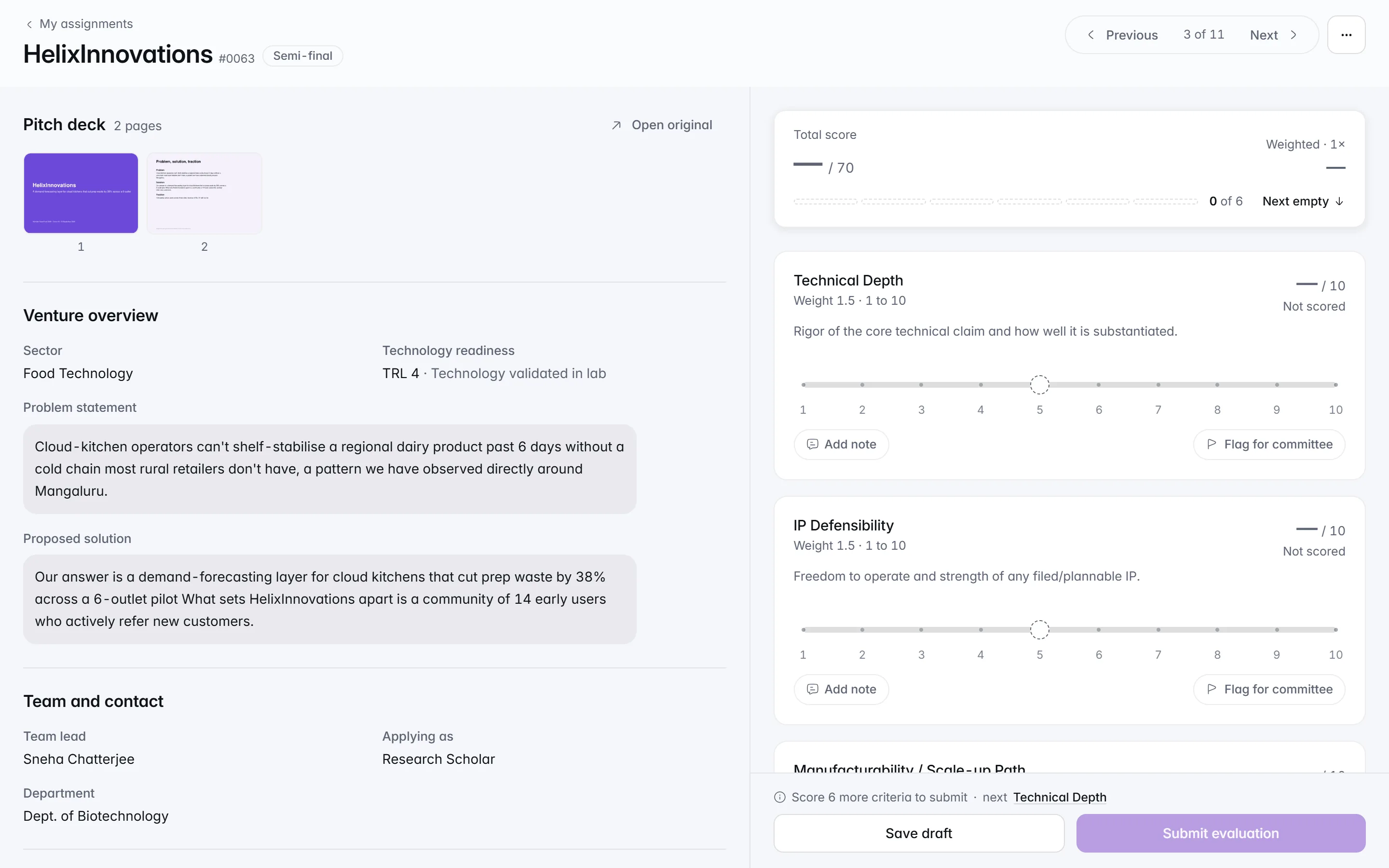
Step 5: Preview as an Evaluator
Choose Preview as evaluator to see the scoring page before anyone uses it. Then score one real or sample application yourself. A criterion that is hard to score on first use is a criterion to rewrite now.
Step 6: Attach It to a Round
Open the round editor on Rounds and choose the rubric under how the round is judged. Each round has its own rubric, its own assignments and its own leaderboard.
Editing a rubric later creates a new version, and past scores keep the version they were given on. A rubric that already has evaluations cannot be deleted; build a new one for later rounds instead.
Checklist Before Scoring Opens
- Four to eight criteria, each judged from the application
- Weights match what the programme is looking for
- Lowest and highest score described for every criterion
- Criteria in the order evaluators should read them
- Previewed as an evaluator and tested on one application
- Attached to the right round