Zapier and Make connect IdeaScore to 7,000+ apps without code. When something happens in IdeaScore, such as a new application, a decision or results published, your Zap or scenario does the next thing: a spreadsheet row, a CRM contact, a task. Set-up takes about six minutes.
Related: Integrations and the IdeaScore API.
Before You Start
- Professional, Enterprise or Campus. The API, webhooks, Zapier and Make come with these plans.
- An organisation owner. Only owners can set up automations.
- An account with your tool. Zapier needs Webhooks by Zapier, a paid feature with a free trial; Make's Custom webhook works on every Make plan, free included.
- Check if you need it at all. For applications in Google Sheets or Excel, a live spreadsheet link does it with no Zapier or Make, and Slack and Microsoft Teams updates work without either.
Step 1: Pick a Goal
Open Settings, choose Connect apps on the Integrations and API card, and stay on Apps and automations. Under What Would You Like to Automate?, choose a goal:
- Add new applications to a spreadsheet
- Send approved teams to your CRM
- Email applicants when results are out
- Create a task for each new application
- Tell your team when a round closes
- Something else, where you choose the events
Then choose Zapier or Make and Continue.
Step 2: Copy the Address from Your Tool
- In Zapier: choose Create, then Zap. For the trigger, choose Webhooks by Zapier, then Catch Hook, Continue, and copy the Webhook URL.
- In Make: create a scenario, add the Webhooks module, choose Custom webhook, then Add and Save, and copy the address.
Back in IdeaScore, paste it into Paste the address here. The name is filled in for you, such as "Zapier: new applications to a spreadsheet". Choose Create and send a sample.
Step 3: Send a Sample
IdeaScore sends a sample event at once, so your tool has real fields to map. The sample is made-up data, marked as a test, and never contains an applicant's details. The status shows Delivered, or a plain reason with Try again.
In your tool, choose Test trigger (Zapier) or Run once (Make) to see the sample.
Step 4: Finish in Your Tool
Add the action the last step suggests, such as Google Sheets: Create Spreadsheet Row. Map the fields from IdeaScore into it, then Publish in Zapier, or save the scenario and switch Scheduling on in Make.
For Send approved teams to your CRM, add a filter: the event also fires for rejections and withdrawals. Continue only when change is approved.
Step 5: Check on It
Your Automations lists each one in plain words, such as "When a new application arrives", with its health: Delivered, Last send failed with a reason, or Paused after repeated failures with Turn back on. The menu has Send a sample, Activity, Rename and Remove.
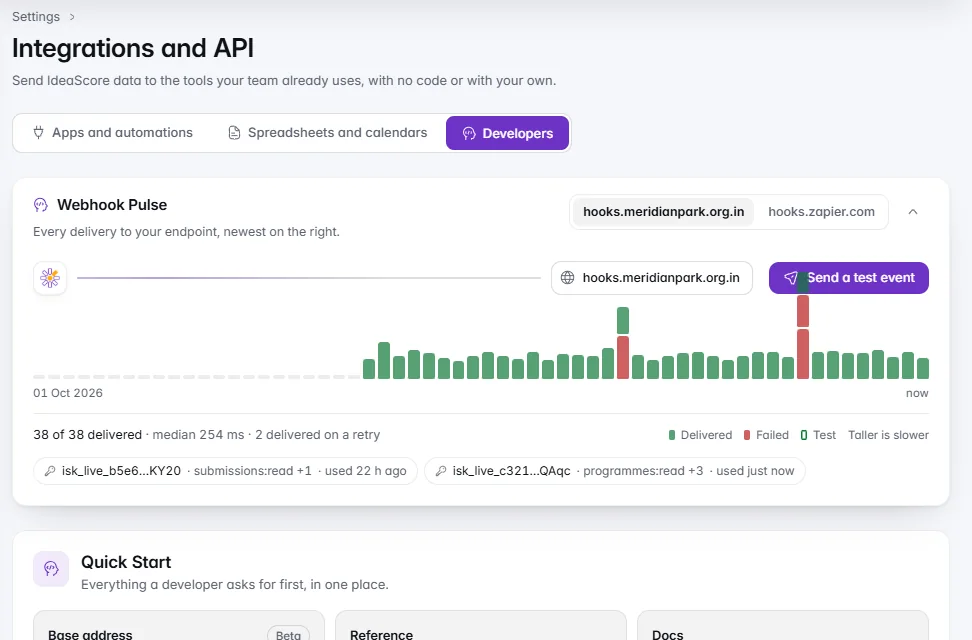
An organisation can have up to 10 automations and webhooks together. If you delete the Zap or scenario, remove the automation here too.
If a Sample Does Not Arrive
- "This needs to start with https://": copy the whole address again.
- "Nothing is listening at that address": the Zap or scenario is off, or the address was copied in part.
- "Your tool had an error" or "No answer within 10 seconds": real events are retried for about seven hours.
- "That is too many tests in a minute": wait, then send another.
If it still fails, contact support with the time of the attempt.